How to Block Adult Websites on iPhone (iOS 26): Every Step, With Screenshots
Your iPhone already has an adult-website filter. Apple built it, it costs nothing, and it takes about three minutes to turn on. Most guides explain it to a parent setting up a child's phone. This one is for you, setting it on your own.
The idea is simple. You set it on a calm evening, so it's already there on a harder one. It won't make anything impossible. It puts a few slow steps between the pull and the page, and often that's enough to change how a night goes.
Before you start
- Check your iOS version in Settings › General › About. These steps are for iOS 26. We ran them on iOS 26.5.
- On iOS 27 the screens moved. Apple's October 2026 support pages put the filter under Apps & Websites › Restrictions › Filtering, and those pages describe a child's device. We haven't tested iOS 27 on a man's own phone yet, so we don't give steps for it here.
- If someone else set a Screen Time passcode on this phone, you'll need them next to you. Step 2 will ask for their code.
- You need nothing else: no app, no account, no payment.
Turn on the filter: six steps
- Open Settings, scroll down and tap Screen Time.
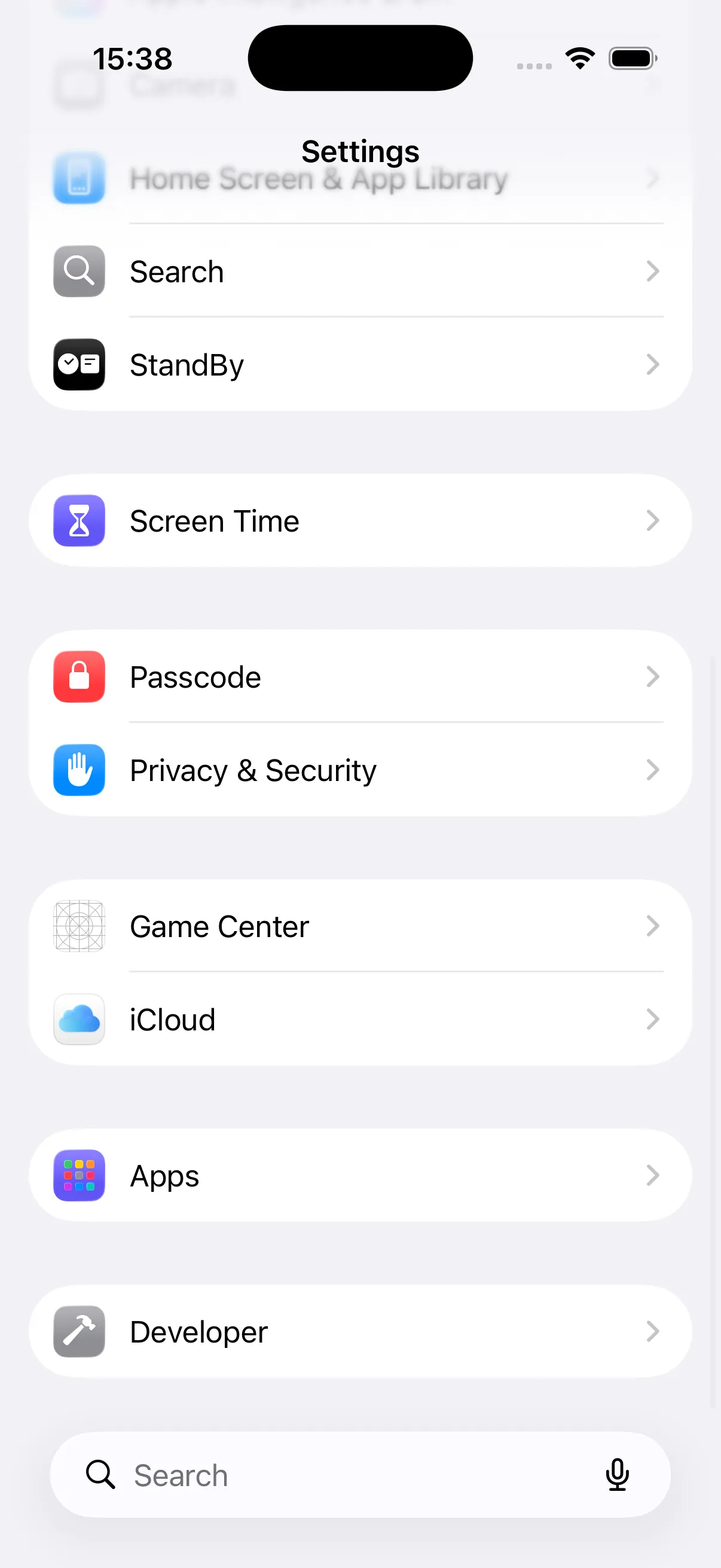
Settings on iOS 26.5. Screen Time sits just above Passcode. - Under the heading Restrictions, tap Content & Privacy Restrictions.
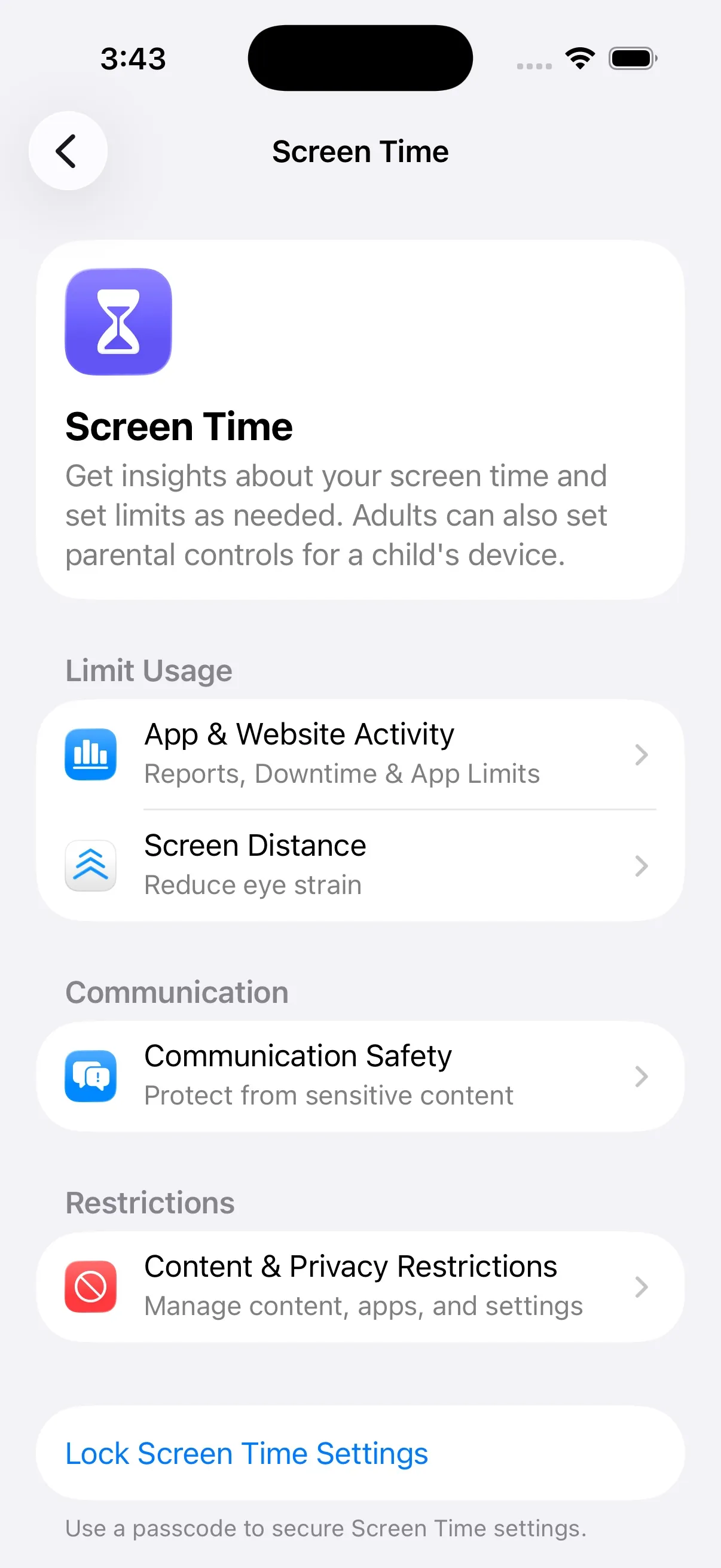
The Screen Time screen. You'll come back to the blue link at the bottom in step 7. - Turn on the switch at the top, also named Content & Privacy Restrictions. Until it's on, the rows under it are grey and nothing below works.
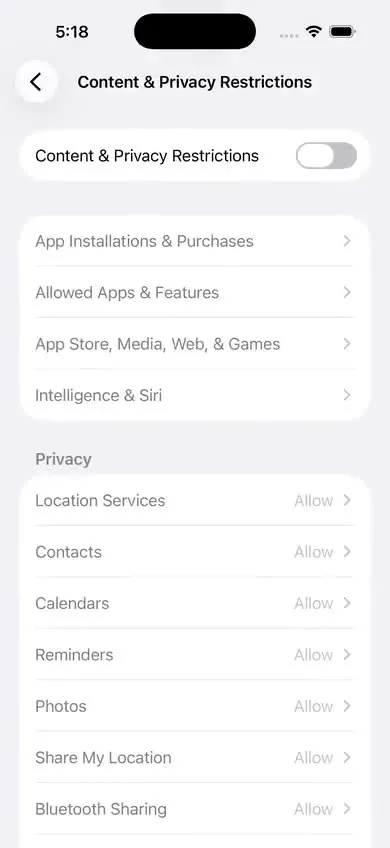
Switch off: every row under it is grey. - Tap App Store, Media, Web, & Games. Scroll down to the row Web Content. It says Unrestricted.
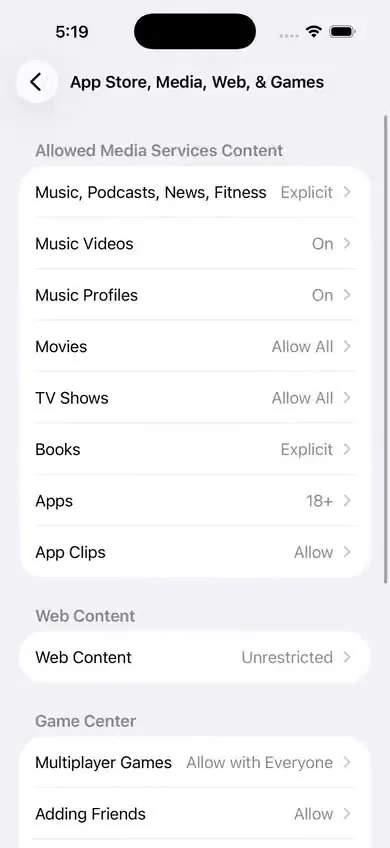
Web Content is near the bottom, under its own heading. - Tap Web Content, then tap Limit Adult Websites. A blue tick appears next to it. Apple's note under the list says it will "limit access to known adult websites automatically".
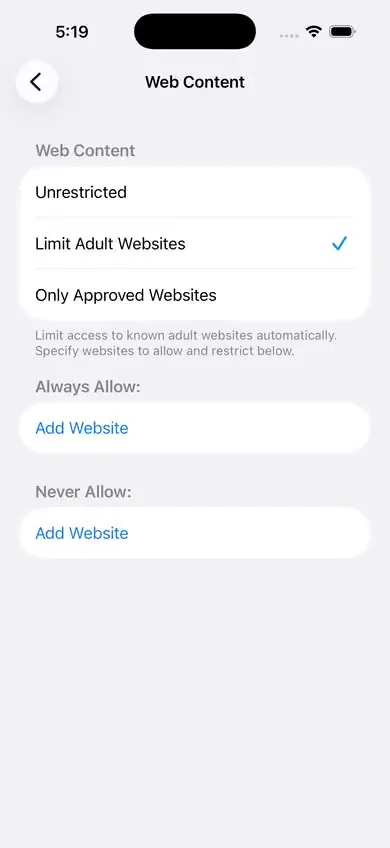
The filter is on. The two lists below it are yours to fill. - Under Never Allow, tap Add Website and type the address of any site that is a door for you and isn't on Apple's list. Social sites are the common ones: an independent analysis in November 2026 found that x.com and reddit.com are not in Apple's list. Add one address at a time.
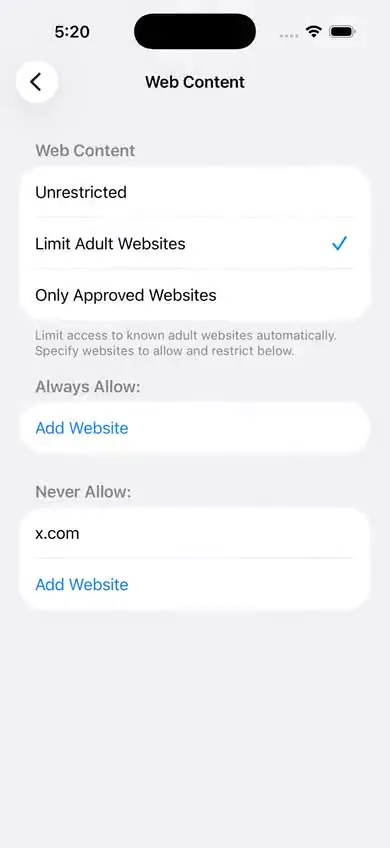
x.com added under Never Allow.
The filter is now running. Nothing protects it yet, though: the same six taps turn it off. That's what the passcode is for.
Lock it with a passcode: two more steps
- Go back to the main Screen Time screen (the one in step 2) and tap Lock Screen Time Settings at the bottom. Type a four-digit code, then type it again. From now on, changing anything in Screen Time asks for that code.
- A sheet named Screen Time Passcode Recovery appears and asks for your Apple Account. This is a real choice, so take a second with it.
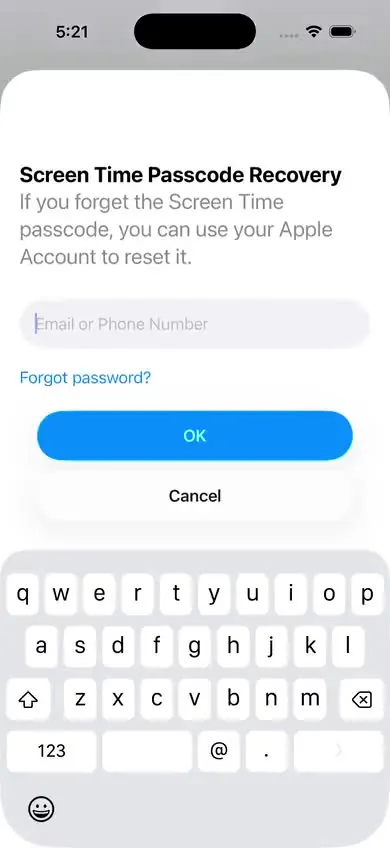
The recovery sheet. OK signs you in. Cancel leads to Skip. - If you sign in, you can reset the code any time with your own Apple password. Good if you only want to stop accidental changes. Less useful if the lock is there for 1am, because you'll know the way around it.
- If you tap Cancel and then Skip, there is no account reset. Apple recommends against skipping, for a fair reason: lose the code and the way out may be erasing the phone.
A code you chose and remember is the weak point of this whole setup, and that's nobody's fault: you can't un-know four digits. Our guide to a Screen Time passcode you can't use against yourself goes through four ways around that problem.
If you want the code held by someone else, with a wait you choose, that's what Sequoia does.
Check that it's on
- Open Safari and type one of the addresses you put under Never Allow, such as x.com. It should refuse to load. You don't need an adult site to test this, and we'd rather you didn't use one.
- Go back to Settings › Screen Time › Content & Privacy Restrictions. It should ask for the passcode before it opens.
If the test address still loads, see "Limit Adult Websites" not working: 7 causes.
What the filter covers
Apple's own documentation describes this filter in one careful sentence: it "limits access to many adult websites automatically". Many, not all. In practice the large, well-known sites are on the list. Small, new and foreign sites are the ones that slip past. When one does, add it under Never Allow. It takes ten seconds and it sticks.
The same screen has a stricter choice, Only Approved Websites, which blocks everything except a short list you write. It's strong, and for most adults it's too much for daily life. Worth knowing it exists.
What this can't do
- It can't override someone else's passcode. If another person locked Screen Time on this phone, only their code changes these settings.
- It doesn't see inside apps. The filter looks at web pages. Photos and video in the feeds of X, Reddit, Telegram or Discord aren't web pages, so they pass. See how to handle X and Reddit.
- Other browsers are less certain. One independent guide reports the filter works well in Safari and Chrome and may not in privacy-focused browsers. We have not tested each browser ourselves.
- It covers this iPhone only. A laptop, a tablet or an old phone in a drawer stays open until you set it up too.
- The "Forgot Passcode" reset undoes it. If you gave your Apple Account at step 8, your own password resets the code.
- A full erase from a computer removes it. That costs about an hour and wipes the phone. We're telling you so you know nothing here is a trap.
So: it slows you down. It doesn't trap you. For a lot of men, slow is what the moment needs.
How this guide was made
We ran the steps on iOS 26.5 in Apple's iOS Simulator, and every screenshot here is our own. Where we rely on Apple's pages or on someone else's report instead of our own test, the text says so. The draft was written with AI help and checked against the sources below. When Apple changes these screens, we update the page and the date at the top.
Sources
- Apple, iPhone User Guide for iOS 26: Block apps, app downloads, websites, and purchases
- Apple, iPhone User Guide for iOS 26: Create, manage, and keep track of a Screen Time passcode
- Apple Platform Deployment: Filter content for Apple devices
- Apple Support: Use parental controls to manage your child's iPhone or iPad (article 105121, 26 October 2026, iOS 27 paths)
- Apple Support: If you forgot your Screen Time passcode (article 102677, 27 October 2026)
- Helge Sverre: an analysis of Apple's adult website filter (4 November 2026, tested on macOS)
- Tech Lockdown: Screen Time not working (updated 20 April 2026)
More guides
- “Limit Adult Websites” not working? 7 causes and fixes
A one-minute test that tells you whether the filter is off or just has a gap, then the fix for each cause.
- How to set a Screen Time passcode you can't use against yourself
Four ways to keep the code out of your own head, and the truth about the Forgot Passcode reset.
- How to block porn on X and Reddit on iPhone
Why the website filter misses apps, and the three things that do work: block the sites, remove the apps, cap the age rating.
- How to stop private browsing and new app installs on iPhone
What the filter really does to private tabs on iOS 26, and how to put the App Store behind a passcode.