How to Stop Private Browsing and New App Installs on iPhone
You've set the adult-website filter on your iPhone. Two side doors are left that people rarely think about until they've used them: a private tab, and a new app downloaded at midnight.
This guide covers both, for a man setting up his own phone. One of the two has a clean answer. The other has an honest "it depends on your version", and a one-minute test that settles it for your iPhone. We ran the Settings screens on iOS 26.5.
Part 1: private browsing
What changed in iOS 26
For years the rule was simple. Turn on Limit Adult Websites and Safari's Private Browsing disappeared. Many guides still say so.
On iOS 26 that's no longer reliable:
- A guide updated in April 2026 states that on iOS 26 the filter no longer disables private tabs.
- On Apple's own community forum, a user on iOS 26.2 reported the Private tab still showing with the filter on.
- In the same thread, a user on iOS 26.4 wrote that Private Browsing went away once a Screen Time passcode was set alongside the filter.
Apple's iOS 26 pages on Private Browsing and on Screen Time don't mention the question. So we can't tell you what your phone will do. You can find out in a minute.
The one-minute test
- Go to Settings › Screen Time › Content & Privacy Restrictions › App Store, Media, Web, & Games › Web Content and tick Limit Adult Websites.
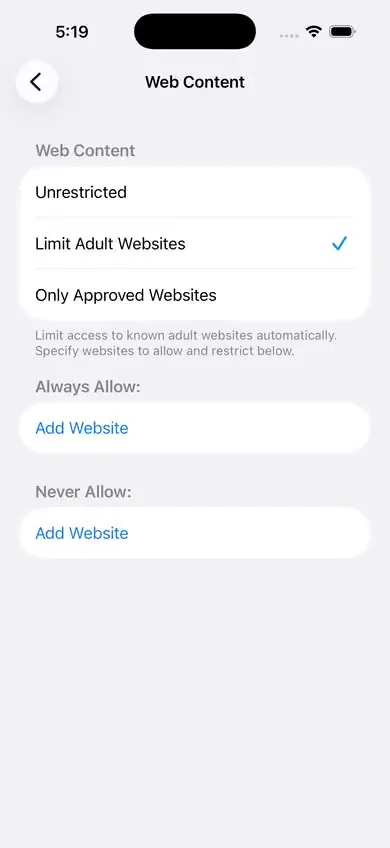
Limit Adult Websites, ticked. - Under Never Allow, add a harmless test address, such as x.com.
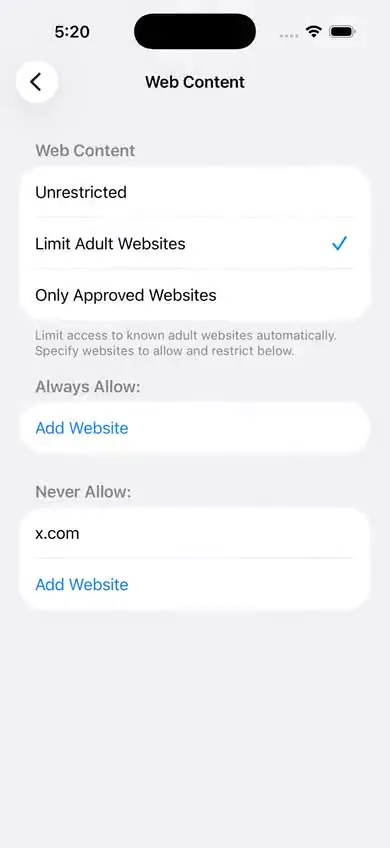
A test address under Never Allow. - Set a Screen Time passcode if you haven't: Settings › Screen Time › Lock Screen Time Settings.
- Open Safari and look at your tabs. Is Private still offered?
- If it is, open a private tab and type the test address.
Reading the result:
- Private is gone: nothing more to do.
- Private is there, and the test address is blocked: the filter is working inside private tabs. Private mode then changes only one thing: nothing is saved to your history. The sites themselves are just as blocked.
- Private is there, and the test address loads: on your version, private tabs are a real hole. The stricter Web Content choice, Only Approved Websites, is reported to hold in private tabs, at the cost of blocking everything not on your list. That's a big step. Write to us at help@seq.today and tell us your iOS version. We want to know.
Can private browsing be switched off completely?
Not with a setting on a normal iPhone. Apple does have a control for it, but it only applies to supervised devices, the kind a company manages. On your own phone, the realistic goal is the middle result above: private tabs that are filtered like any other.
Part 2: new app installs
The filter covers websites. A new app is a new door: another browser, or a social app whose feed the filter can't see. If the App Store is open, any app you deleted is a minute away from being back.
There are two ways to close this. Pick by how much friction you can live with.
Option A: an age cap (lighter)
Keep the App Store, and block only apps above an age rating.
- Open Settings › Screen Time › Content & Privacy Restrictions › App Store, Media, Web, & Games.
- Tap Apps and choose a rating below the apps you want kept out. Ratings since iOS 26 run 4+, 9+, 13+, 16+ and 18+.
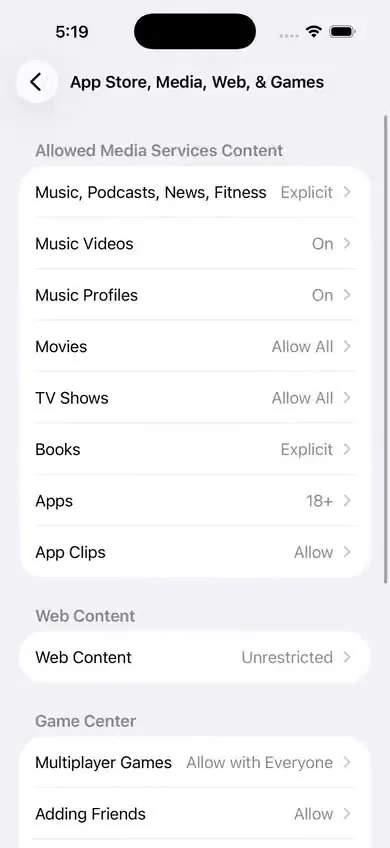
The Apps row sets the highest rating allowed. - Check your Home Screen. Apps above the cap are hidden, so see what you lost before you lock it in.
The limit: many apps sit under any cap you'd choose. Messaging apps with open channels are the usual example. A cap narrows the door. It doesn't shut it.
Option B: no installs at all (stronger)
- Open Settings › Screen Time › Content & Privacy Restrictions.
- Tap App Installations & Purchases, the first row under the switch.
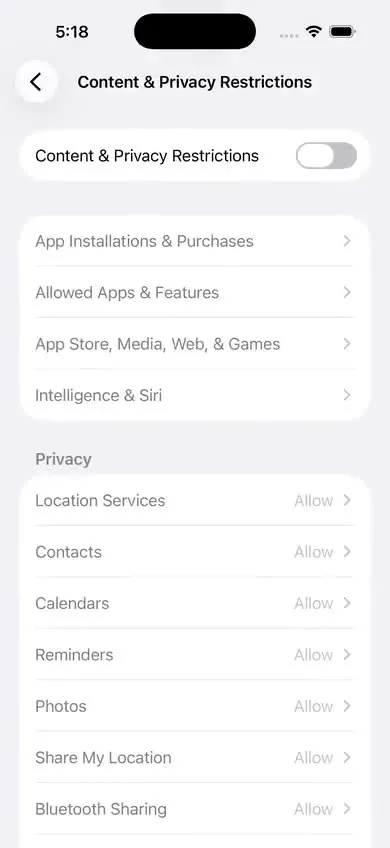
App Installations & Purchases is the first row. Turn the switch on to open it. - Find the setting for installing apps and set it to not allowed. We name the row exactly because we've seen it on iOS 26.5. We haven't captured the screen behind it yet, so we describe the setting instead of quoting a label. On earlier versions it was called Installing Apps, with the choice Don't Allow.
- Go back to your Home Screen. The App Store should no longer be available.
What it costs: you can't install anything, including the boring useful things: a parking app, an airline app at the gate. Each one needs the Screen Time passcode. If someone else holds your code, that means asking. Some men find that's exactly right. Others resent it within a week and undo the whole setup. Option A plus deleting the apps that matter is the gentler start.
One known leak: between November 2025 and February 2026, users on iOS 26 reported on Apple's forum that with installs blocked they could still download apps through search suggestions. One later wrote that Apple had fixed it. After you set Option B, try once from the Home Screen search to see what your version does.
Extra browsers
Every browser on the phone is another place to run the private-tab test from Part 1. The simple rule: keep Safari, delete the rest, then use Option A or B so they stay gone. If you need a second browser for work, run the test in it, private mode included, before you decide to keep it.
Lock it, or none of it holds
Every setting on this page can be reversed in a few taps unless Screen Time has a passcode. Set it last, after everything else is the way you want it: Settings › Screen Time › Lock Screen Time Settings. A code you know is its own soft spot, so read how to set a Screen Time passcode you can't use against yourself.
If you want the code held by someone else, with a wait you choose, that's what Sequoia does.
What this can't do
- Someone else's passcode. If another person set the Screen Time passcode on this phone, these screens won't open without them.
- Apps you already have. Blocking installs does nothing about what's on the phone tonight. Feeds inside apps aren't web pages, so the filter doesn't see them. See X and Reddit on iPhone.
- A second device. A laptop, a tablet, an old phone: each stays open until you set it up too.
- The "Forgot Passcode" reset. If your Apple Account is attached to the Screen Time passcode, your own password resets the code, and with it everything on this page.
- Turning private browsing off for good. There's no such switch on a personal iPhone.
What you get is a phone where the easy routes take real effort. It slows you down. It doesn't trap you.
How this guide was made
We ran the steps on iOS 26.5 in Apple's iOS Simulator, and every screenshot here is our own. Where we rely on Apple's pages or on someone else's report instead of our own test, the text says so. The draft was written with AI help and checked against the sources below. When Apple changes these screens, we update the page and the date at the top.
Sources
- Apple, iPhone User Guide for iOS 26: Block apps, app downloads, websites, and purchases
- Apple, iPhone User Guide for iOS 26: Browse the web privately in Safari
- Apple Developer: Updated age ratings in App Store Connect (24 July 2025)
- Apple Support Community: private tab still shown with Limit Adult Websites (iOS 26.2 to 26.4, February to March 2026)
- Apple Support Community: app installs through Search with installing apps set to not allowed (November 2025 to February 2026)
- Tech Lockdown: iOS 26 Screen Time changes (updated 20 April 2026)
- Tech Lockdown: Screen Time not working (updated 20 April 2026)
More guides
- How to block adult websites on iPhone (iOS 26)
The built-in filter, all eight taps, with a screenshot of each screen and a plain list of what it can't do.
- “Limit Adult Websites” not working? 7 causes and fixes
A one-minute test that tells you whether the filter is off or just has a gap, then the fix for each cause.
- How to set a Screen Time passcode you can't use against yourself
Four ways to keep the code out of your own head, and the truth about the Forgot Passcode reset.
- How to block porn on X and Reddit on iPhone
Why the website filter misses apps, and the three things that do work: block the sites, remove the apps, cap the age rating.