How to Set a Screen Time Passcode You Can't Use Against Yourself
The filter on your iPhone is only as strong as the four digits that guard it. If you chose them, you know them. And on the night you most want the filter to hold, you'll be the one person who can type them.
That isn't a flaw in you. A code you know is a note to yourself, and notes are easy to ignore at 1am. This guide covers four ways to set a Screen Time passcode you can't simply type back in, and it's honest about the hole that stays open in each.
How the passcode works on iOS 26
We ran these screens on iOS 26.5. The facts that matter:
- You set it in Settings › Screen Time › Lock Screen Time Settings. It's four digits, typed twice.
- Once set, changing any Screen Time setting asks for it. That includes the adult-website filter and the switch that turns Screen Time off.
- Right after you set it, a sheet offers Screen Time Passcode Recovery with your Apple Account. That sheet decides how strong the lock is. More on it below.
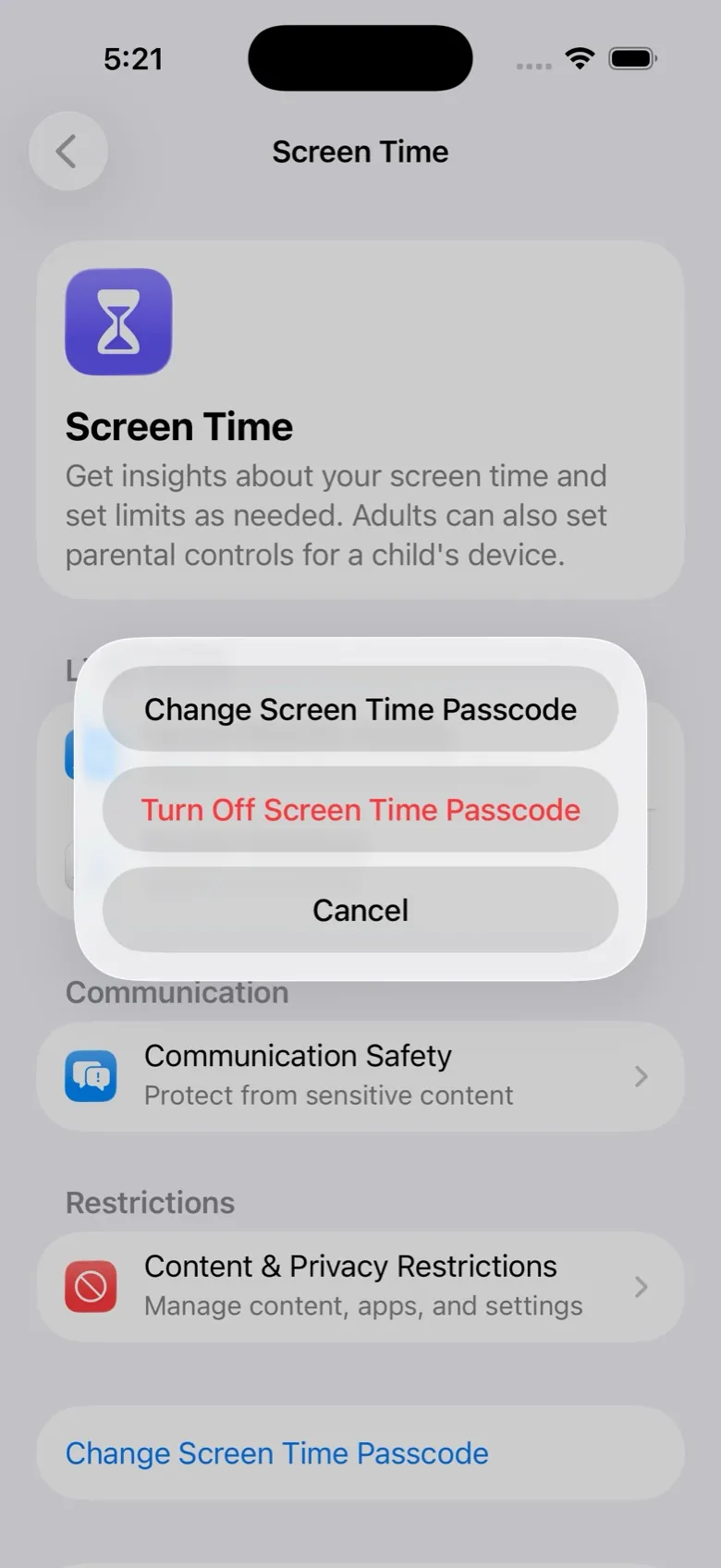
- The row then changes to Change Screen Time Passcode. Tapping it gives two choices, change it or turn it off, and both ask for the current code.
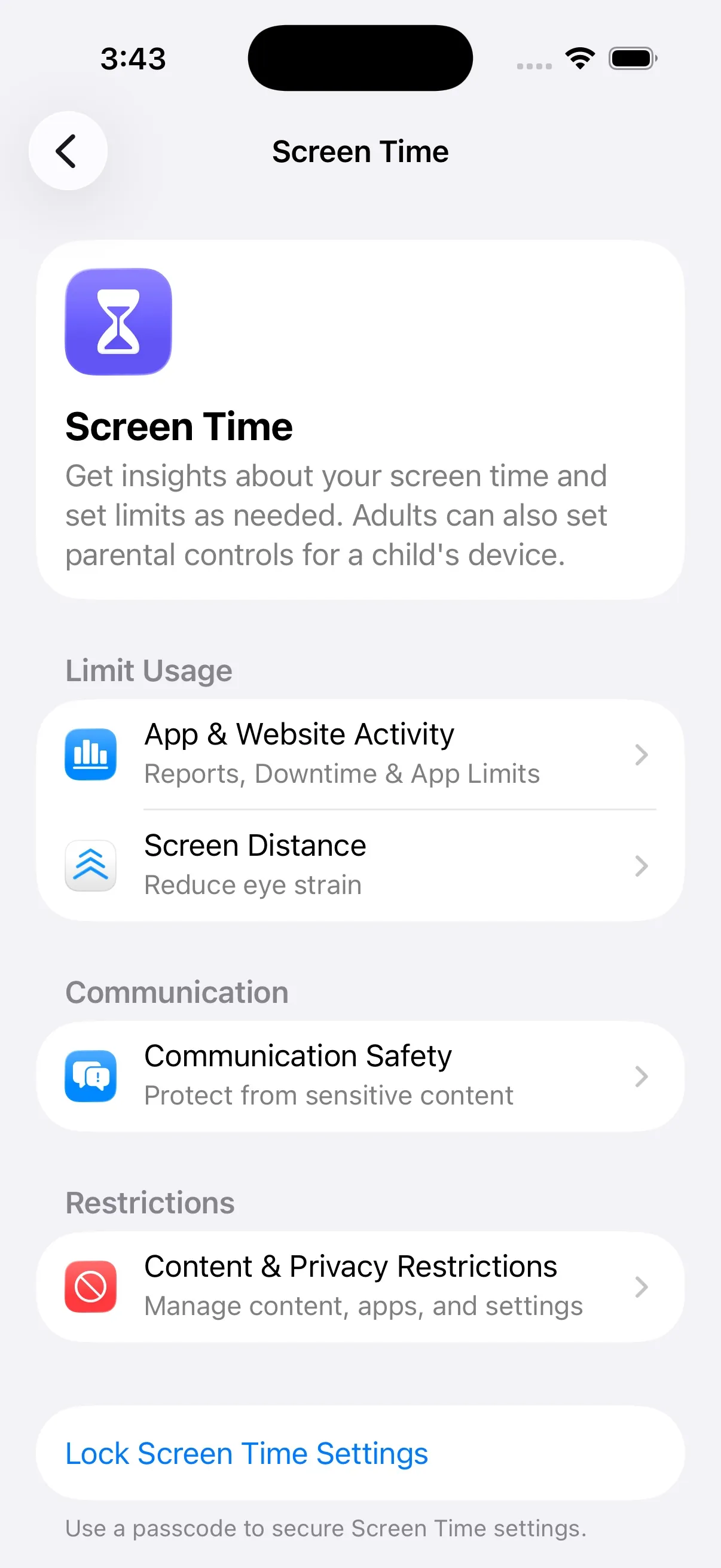
If you haven't turned the filter on yet, do that first: how to block adult websites on iPhone. Set the passcode last.
Four ways to not know your own code
1. A friend types it
Hand your phone to someone you trust. He taps Lock Screen Time Settings, types four digits you don't see, twice, then taps Cancel and Skip on the recovery sheet, and keeps the number.
- Good: you never knew the code. Free. Done in a minute.
- Costs: you have to tell someone. He has to keep the number and answer when you really need it, for a setting change or a new phone. And asking him is a conversation, which is partly the point and partly a weight.
2. A split code
You type the first two digits, a friend types the last two. You do it again for the second entry. Each of you holds half, so neither can open it alone, and he never holds anything that works by itself.
- Good: lighter to ask for than "hold my code". Works with someone who isn't nearby later: he can text his half when the two of you agree.
- Costs: two missing digits is only 100 combinations. Others report that iOS adds growing waits after wrong tries, which turns guessing into hours, not minutes. It's a slow door, and it's a door.
3. A timed vault
Write the code on paper and lock the paper in a timed lock box (the kitchen-timer kind that won't open until the countdown ends). Or put it in a note inside a time-lock app you trust.
- Good: no other person involved. You pick the wait.
- Costs: you saw the code when you set it. Four digits are easy to remember by accident. It helps to type them from a random-number list without saying them, and to not look at the paper again. That lowers the odds. It doesn't remove them.
4. A key-holder
A service holds the code and returns it only after a wait you chose in advance: a day, three days, a week. Some feed you the digits during setup in a way that makes them hard to keep in your head.
- Good: nobody you know is involved. The wait is fixed by you on a clear-headed day, and it's the same at 1am as at noon.
- Costs: usually money, and trust in whoever holds the code. Ask any service two questions before paying: how do I get my code back, and can I cancel billing without waiting for it? The answers should be "after the wait you picked" and "yes, always".
If you want the code held by someone else, with a wait you choose, that's what Sequoia does.
The recovery sheet: the step that decides everything
Whichever way you pick, this is where most setups quietly fail. Straight after the code is typed twice, iOS shows this:
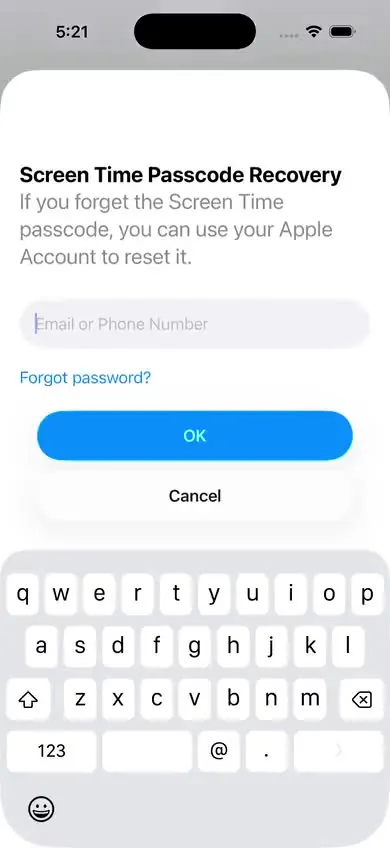
If you sign in, the passcode can be reset with your Apple Account password. You know that password. So the hidden four digits are now guarded by a password in your own head, and the friend, the vault or the service is holding nothing.
To leave recovery off, tap Cancel. iOS asks "Are you sure?" and offers two buttons. Tap Skip.
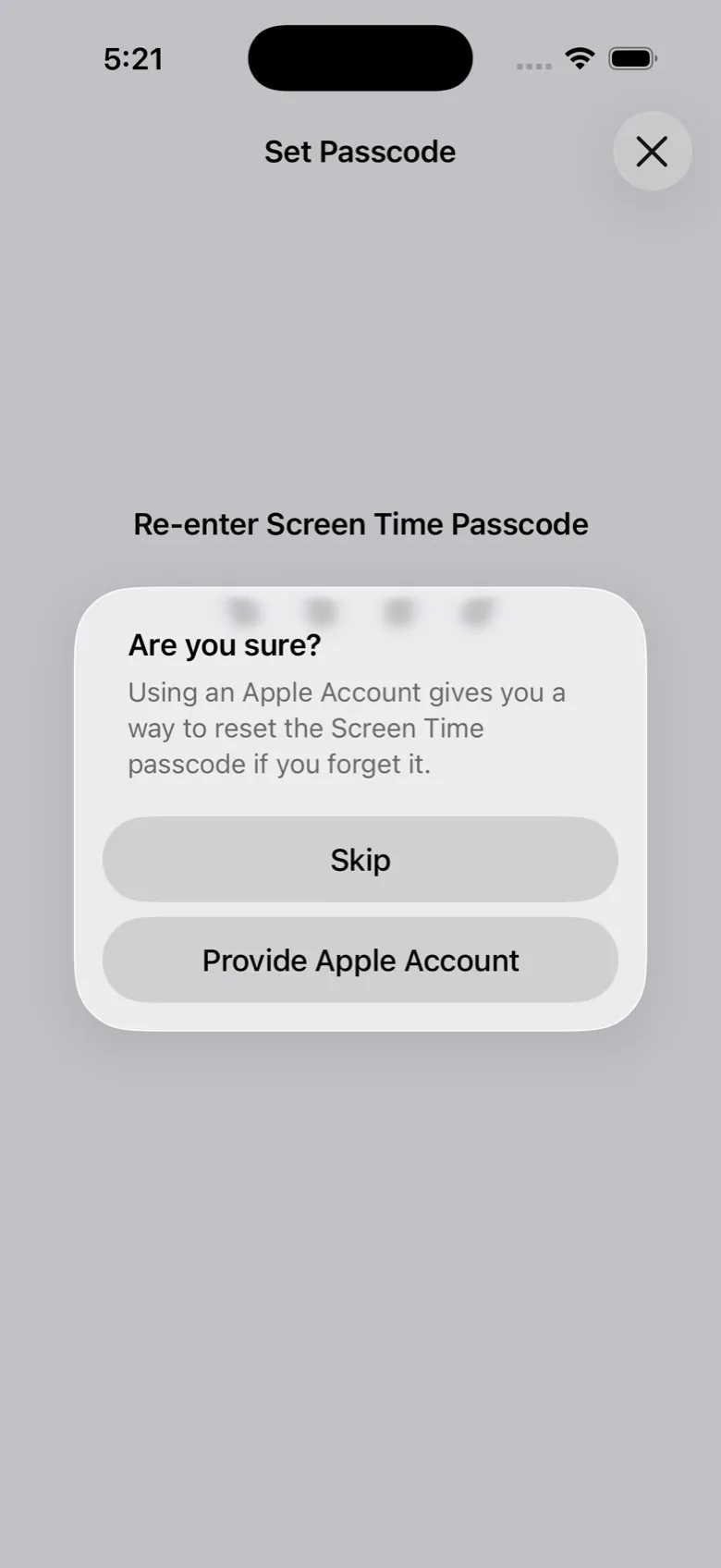
Be clear about the cost. Apple recommends that you don't skip, because without recovery a lost code is a real problem: the fallback that others describe is erasing the iPhone and setting it up as new. Before you skip, make sure the code truly exists somewhere outside your head, and that your photos and messages are backed up to iCloud.
The "Forgot Passcode" hole, said honestly
Skipping recovery narrows the reset. We can't promise it closes it.
- On iOS 26: in July 2026 a user on iOS 26.6 reported resetting his Screen Time code with his Apple Account even though he had skipped recovery at setup. The app maker he reported it to called it an iOS 26.6 bug and said they had sent it to Apple. We haven't reproduced it, and we don't know which versions it touches.
- On iOS 27: Apple's own article, dated 27 October 2026, describes changing your Screen Time passcode by authenticating with Face ID or the passcode that unlocks the phone. If that works without the old code, a hidden code is worth much less on iOS 27. We haven't tested it yet, and we'll update this page when we have.
How to narrow it:
- Tap Cancel, then Skip, on the recovery sheet. Every time, including when you change the code later.
- After setup, tap Change Screen Time Passcode and look at what the screen offers. If it shows a "Forgot Passcode?" link, tap it once, see what it asks for, and back out. Now you know what your version does.
- If you have an iPad or a Mac, turn on Share Across Devices. Apple says the Screen Time passcode then updates on those devices too, so one code guards all of them.
- Test in daylight, not at night. If you find a way through, you'd rather find it now and close it.
What this can't do
- Someone else's passcode. If a Screen Time passcode is already on this phone and another person set it, none of this applies until they remove it.
- Apps. The passcode guards settings. It doesn't filter what's inside X, Reddit or Telegram. See X and Reddit on iPhone.
- A second device. A code on your iPhone does nothing for a laptop or an old phone, unless you set those up as well.
- The "Forgot Passcode" reset. With recovery on, your Apple password opens it. With recovery skipped, see the two open questions above.
- A full erase. Restoring the phone from a computer and setting it up as new removes the passcode. It takes about an hour and wipes the phone.
- Your own memory. If you decide at setup to keep the number, you will. Every method here only helps the man who doesn't want to know it.
That last point matters most. None of this beats you on a calm day, and it isn't meant to. It's there so that in a hard moment the code isn't in your head. It slows you down. It doesn't trap you.
How this guide was made
We ran the steps on iOS 26.5 in Apple's iOS Simulator, and every screenshot here is our own. Where we rely on Apple's pages or on someone else's report instead of our own test, the text says so. The draft was written with AI help and checked against the sources below. When Apple changes these screens, we update the page and the date at the top.
Sources
- Apple, iPhone User Guide for iOS 26: Create, manage, and keep track of a Screen Time passcode
- Apple Support: If you forgot your Screen Time passcode (article 102677, 27 October 2026)
- Apple, iPhone User Guide for iOS 26: Get started with Screen Time (Share Across Devices)
- Tech Lockdown: the Screen Time passcode loophole (updated 12 May 2026)
- one sec feedback board: Screen Time code reset with an Apple Account after skipping recovery (iOS 26.6, July to August 2026)
More guides
- How to block adult websites on iPhone (iOS 26)
The built-in filter, all eight taps, with a screenshot of each screen and a plain list of what it can't do.
- “Limit Adult Websites” not working? 7 causes and fixes
A one-minute test that tells you whether the filter is off or just has a gap, then the fix for each cause.
- How to block porn on X and Reddit on iPhone
Why the website filter misses apps, and the three things that do work: block the sites, remove the apps, cap the age rating.
- How to stop private browsing and new app installs on iPhone
What the filter really does to private tabs on iOS 26, and how to put the App Store behind a passcode.