“Limit Adult Websites” Not Working on iPhone? 7 Causes and the Fix for Each
You turned on Limit Adult Websites, and something still got through. That's frustrating, and it's common. Almost always the cause is one of seven things, and most take a minute to fix.
This is written for a man who set the filter on his own iPhone. We mark each cause plainly: what we checked ourselves on iOS 26.5, and what comes from Apple's pages or other people's reports that we haven't tested yet.
First, a one-minute test
This tells you which half of the list to read. You don't need an adult site for it.
- Go to Settings › Screen Time › Content & Privacy Restrictions › App Store, Media, Web, & Games › Web Content.
- Check that Limit Adult Websites has the blue tick.
- Under Never Allow, tap Add Website and add a harmless address you don't need tonight, such as x.com.
- Open Safari and type that address.
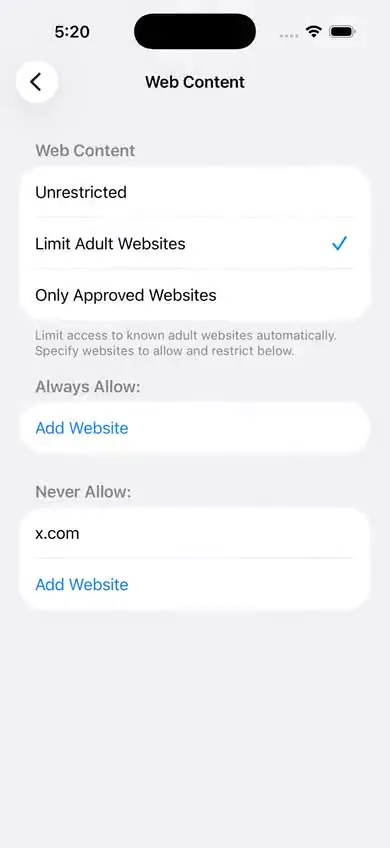
- The test address is blocked: the filter is running. The gap is a site it doesn't know (cause 5) or a way around Safari (causes 2, 3 and 4).
- The test address loads: the filter isn't really on. Read causes 1, 6 and 7.
The 7 causes
1. The switch is off, or another device changed it
Screens checked by us on iOS 26.5
Two switches have to be right. The main Content & Privacy Restrictions switch must be on, and Web Content must say Limit Adult Websites, not Unrestricted.
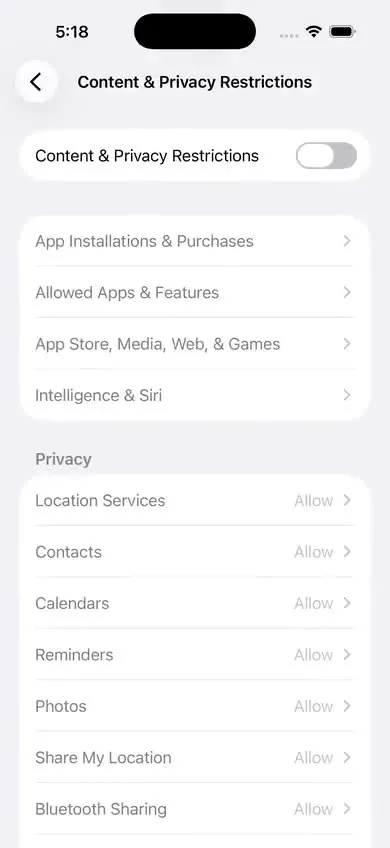
If both keep changing back, look at Share Across Devices on the main Screen Time screen. Apple says that with it on, your Screen Time settings apply to every iPhone, iPad and Mac signed in to the same Apple Account. A change made on your iPad or Mac can land on your phone.
The fix: open Web Content on each device and set it the same way. Then lock Screen Time with a passcode, so a stray tap anywhere can't undo it.
2. You're in another browser
Reported by others. Not yet tested by us
The filter is built for Safari. An independent guide, updated in April 2026, reports that it works well in Safari and Chrome and may not filter in browsers built for privacy.
The fix: run the one-minute test in every browser on your phone. Delete any browser where the test address loads. To stop one coming back, see how to stop new app installs.
3. It's inside an app, not on a website
From an independent analysis. Matches how the filter is built
This is the biggest gap. The filter checks web pages. A feed inside X, Reddit, Telegram or Discord isn't a web page, so the filter never sees it. Some apps also open links in their own small browser, and one guide reports those aren't always filtered either.
The fix: a website filter can't close this. Removing the app or capping app age ratings can. We wrote the steps in how to block adult content on X and Reddit.
4. A VPN app
Not yet tested by us
People often blame a VPN. We found no Apple page that says a VPN switches the filter off. The analysis we rely on describes the check as happening on the phone itself, before the page loads, which a VPN shouldn't change. Two things can still go wrong: some VPN apps carry their own built-in browser (that's cause 2), and we haven't run this test ourselves.
The fix: turn the VPN on and repeat the one-minute test. If the test address loads only with the VPN on, remove that VPN app.
5. The site isn't on Apple's list
Fix checked by us on iOS 26.5
Apple's wording is exact: the filter limits access to "many adult websites automatically". Many. An independent analysis in November 2026 counted about 5.9 million entries in the list, and still found it covered only around a quarter of one large public list of adult domains. New and small sites get through.
The fix: add the address under Never Allow. It's blocked from that second, and it stays blocked.
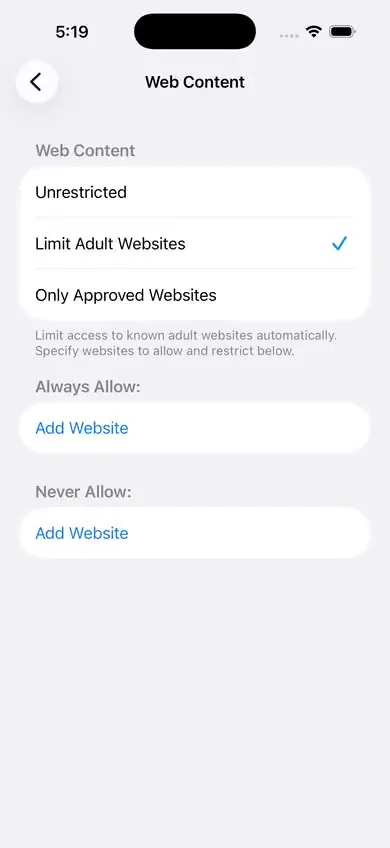
Adding sites one by one sounds endless. It usually isn't, because you only need the handful of addresses that are doors for you, not the whole web.
6. Private Browsing
Reports conflict. Not yet tested by us
On iOS 18 and earlier, turning on Limit Adult Websites removed Safari's Private Browsing. On iOS 26 that changed: people on iOS 26.2 found the Private tab still there with the filter on. One person on iOS 26.4 wrote that it disappeared again once a Screen Time passcode was set. Apple's own pages don't say either way.
The fix: open a private tab and run the one-minute test there. If the test address is blocked, the filter is working in private tabs too, and the only thing private mode changes is your history. More in how to stop private browsing.
7. An iOS update changed something
From Apple's pages and user reports
Screen Time shifts between versions. The private-tab change above arrived with an update. iOS 27 went further and moved these screens altogether: Apple's October 2026 pages show the filter under Apps & Websites › Restrictions › Filtering.
The fix: after every iOS update, spend one minute on the test at the top of this page. If you can't find the screens named here, check your version in Settings › General › About. This guide is for iOS 26.
If it's none of the seven
Ask whether the filter was switched off rather than broken. Without a Screen Time passcode, turning it off takes six taps, and six taps are nothing at 1am. That's how the setting is built, and it says nothing about you. Set a passcode with Lock Screen Time Settings, then read how to set one you can't use against yourself.
If you want the code held by someone else, with a wait you choose, that's what Sequoia does.
What this can't do
Even with all seven fixed, the filter has edges. Better to know them tonight than to find them later.
- Someone else's passcode. If another person locked Screen Time on this phone, you can't change any of this without them.
- Apps. Feeds inside apps aren't web pages. No setting on the Web Content screen reaches them.
- A second device. The filter lives on the device where you set it. A laptop or an old phone stays open until you set it up as well.
- The "Forgot Passcode" reset. If your Apple Account is attached to the Screen Time passcode, your own password resets the code and opens every setting above.
- The whole web. A list, even one with millions of entries, is always a little behind.
It slows you down. It doesn't trap you.
How this guide was made
We ran the steps on iOS 26.5 in Apple's iOS Simulator, and every screenshot here is our own. Where we rely on Apple's pages or on someone else's report instead of our own test, the text says so. The draft was written with AI help and checked against the sources below. When Apple changes these screens, we update the page and the date at the top.
Sources
- Apple, iPhone User Guide for iOS 26: Block apps, app downloads, websites, and purchases
- Apple, iPhone User Guide for iOS 26: Get started with Screen Time (Share Across Devices)
- Apple Platform Deployment: Filter content for Apple devices
- Apple, iPhone User Guide for iOS 26: Browse the web privately in Safari
- Apple Support Community: private tab still shown with Limit Adult Websites (iOS 26.2 to 26.4, February to March 2026)
- Tech Lockdown: Screen Time not working (updated 20 April 2026)
- Tech Lockdown: iOS 26 Screen Time changes (updated 20 April 2026)
- Helge Sverre: an analysis of Apple's adult website filter (4 November 2026, tested on macOS)
- Apple Support: Use parental controls to manage your child's iPhone or iPad (article 105121, 26 October 2026, iOS 27 paths)
More guides
- How to block adult websites on iPhone (iOS 26)
The built-in filter, all eight taps, with a screenshot of each screen and a plain list of what it can't do.
- How to set a Screen Time passcode you can't use against yourself
Four ways to keep the code out of your own head, and the truth about the Forgot Passcode reset.
- How to block porn on X and Reddit on iPhone
Why the website filter misses apps, and the three things that do work: block the sites, remove the apps, cap the age rating.
- How to stop private browsing and new app installs on iPhone
What the filter really does to private tabs on iOS 26, and how to put the App Store behind a passcode.